Bright Notes Documentation
Welcome to Bright Notes! This guide will help you get started and make the most of all the features available in your note-taking workspace.
Getting Started
Creating Your First Note
To create a new note, click the "+" icon. A new document will appear in the editor where you can start typing.
Organizing with Topics
Topics help you organize your notes into categories. You can:
- Create a new topic by clicking the "+" button in the topics panel
- Click on any topic to see all notes within that topic
- Drag and drop topics to reorder them
- Right-click on a topic to rename or delete it
Sub-topics
For even better organization, you can create sub-topics within topics:
- Select a topic, then click the "+" button in the sub-topics panel
- Sub-topics allow you to create a hierarchical structure for your notes
- Click on a sub-topic to filter notes within that category
Editing Notes
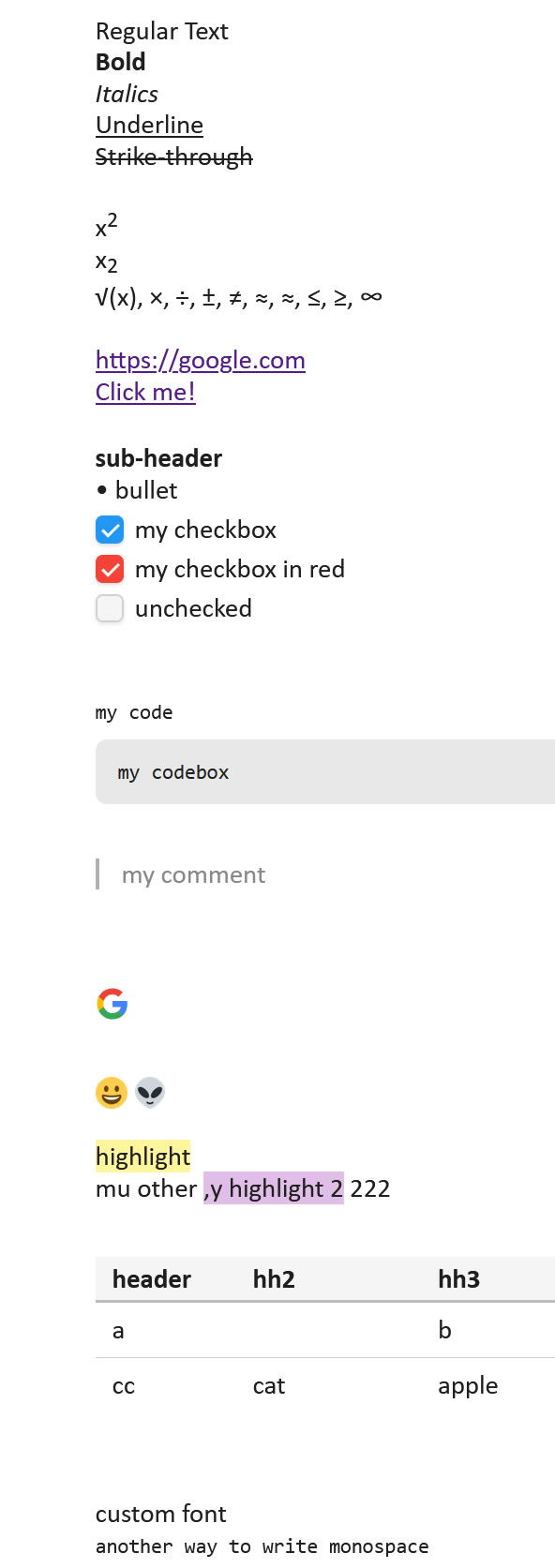
Text Formatting
Bright Notes supports rich text formatting. Use the toolbar buttons to format your text:
- Bold: Select text and click the Bold button in the toolbar
- Italic: Select text and click the Italic button in the toolbar
- Underline: Select text and click the Underline button in the toolbar
- Lists: Use the list buttons in the toolbar or start a line with
-or1.
Saving Your Work
To save your notes, click the "Save" button in the toolbar. Make sure to save your work regularly to avoid losing any changes.
Search and Navigation
Searching Notes
Use the search bar at the top to quickly find any note:
- Search by note title or content
- Search within a specific topic by selecting it first
- Click in the search bar to start searching
Customization
Adjusting Pane Widths
You can customize the width of the topics, sub-topics, and main document panes:
- Click the Settings icon (gear) in the header
- Adjust the percentage widths for each pane
- Your preferences are saved automatically
Theme
Switch between light and dark themes using the theme toggle in the header. Your preference is saved and will persist across sessions.
Mobile Usage
Responsive Design
Bright Notes adapts to your screen size:
- Desktop: Full three-pane layout (topics, sub-topics, document)
- Tablet: Two-pane layout (topics and document)
- Mobile: Single-pane view - tap a topic to view its notes
Mobile Navigation
On mobile devices:
- Tap a topic to view its notes
- Use the "Back to Topics" button to return to the topic list
- Tap the three-dot icon (⋯) on a topic to access context menu options
Tips for Best Results
Organize Early: Set up your topic structure before creating many notes. It's easier to organize from the start than to reorganize later.
Use Descriptive Titles: Give your notes clear, descriptive titles so you can find them easily later.
Leverage Search: Don't worry about perfect organization - Bright Notes' powerful search can find any note instantly, even if it's in the "wrong" topic.
Need More Help?
If you have questions or need assistance, please:
Last updated: January 2026